Azure Functions
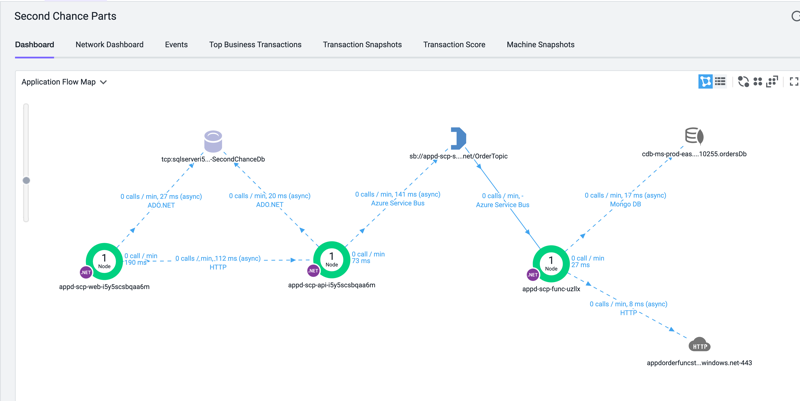
Lab Scenerio
With a quickly growing business Second Chance Parts is looking for additional opportunities to improve their online e-commerce platform and better manage the quickly growing complexity of the their business. An ever increasing amount of complex activity takes place during order processing. The Second Chance Parts team thinks breaking the complexity into micrservices is a great place to start but would like to take it a step further by an embracing an event based messaging architecture and use the advantages the cloud provides to scale on demand. Additionally they require a flexible schema backend data store that is highly scalable and can be developed and maintained independantly of the rest of the platform to offer the most amount of flexibility. They have identified Azure Functions, Service Bus, and CosmosDB as the perfect cloud native platform combination to meet their needs.
In this lab we will implement the new order processing function with Azure Functions and configure AppDynamics to monitor that end to end workload that now includes Azure Functions and CosmosDB using the MongoDB API.
Lab Primary Objectives
- Provision Azure Functions through the Azure CLI
- Provision CosmosDB and Service Bus Topic Subscriptions through the Azure CLI
- Deploy the application components to Azure Functions
- Deploy, Configure, and Validation\Troubleshoot the AppDynamics Agent
Tech Stack
- Azure Functions 3
- .Net Core 3.1
- Azure Service Bus Topic Subscription
- CosmosDB (over MongoDB API)
Azure Functions Overview
Azure Functions allows you to run small pieces of code (called “functions”) without worrying about application infrastructure. With Azure Functions, the cloud infrastructure provides all the up-to-date servers you need to keep your application running at scale.
Azure Functions is part of the Azure App Service family and inherits many of it’s features, functionality, and configuration. Azure Functions also has open source core tools and runtimes so it can also be run on other platforms, most typically Kubernetes, both on-premise and in the cloud. Although the Azure Functions runtime is based on .Net Core it supports various languages including Java, Node, Python, and Powershell.
Azure Functions is an events based platform. For many customers this is typically http and timer based events but also very common storage queues, service bus queues and topics, event hubs and numerous other events. Central to Azure Functions are the concepts of triggers and bindings. Triggers are associated with the events previously mentioned and mindings provided simplified methods for interacting with common platforms on Azure such as Service Bus, Azure Storage (Blobs,Storage, Queues), etc. It’s worth mentioning that the underlying implementation of these bindings are the standard.
Azure Functions and AppDynamics
AppDynamics will automatically detect HttpTriggers, TimerTriggers, QueueTriggers, and ServiceBusTriggers as Business Transactions. AppDynamics will provide end to end visibility and distributed tracing as you would expect through HttpTriggers and ServiceBusTriggers. Additional triggers not supported by default can be configured with custom entry points.
NOTE: Azure Storage Queues are very common on Azure Functions but unfortunatly do not support distributed tracing. This is a current limitation of Azure. The platform lacks any location to store distributed tracing tokens. Custom correlation is only possibly by modifying the message payload to include addition distributed tracing data.
The Site Extensions concept for deploying agents on Application Insights has also recently been extended for work with Azure Functions as well. AppDynamics Agents can be packaged with the application or through the Site Extensions. This lab will cover the deployment using the latter technique.
TIP Durable Functions and Durable Entities are a popular native extension to Azure Functions that provides a workflow and orchestration framework on top of Azure Functions. Durable Functions make use of the open source Durable Task Framework and are implemented using additional triggers and bindings and a combination of Table Storage and Storage Queues behind the scenes. Defining custom entry points for these durable functions activities can provide some visibility into Durable Functions.
Lab Steps
Step #1 - Azure Resource & Application Deployment
Azure Resources Being Deployed
The following Azure Resources will be deployed as part of this step:
- Azure Function App Service Plan
- Azure Function App
- Service Bus Topic Subscription
- CosmosDB Account
- CosmosDB Database
- CosmosDB Collection
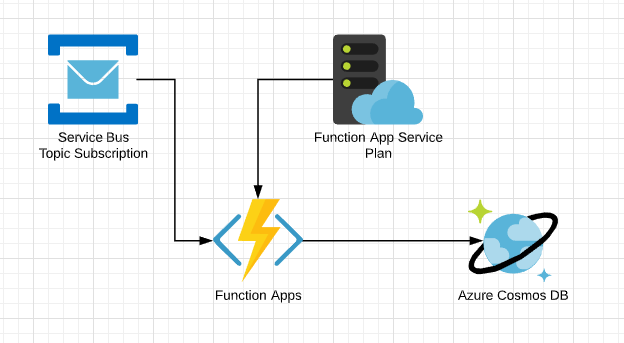
TIP: This diagram created using Lucid Charts. Lucid Charts has native Azure and Cloud icons that are helpful when creating Azure Architecture Diagrams.
Deployment Script
The Azure Functions Lab contains a single unified powershell script found within your project under /labs/azure-functions/deploy/azure-deploy.ps1 that performs the following actions:
Compile and packaging of the the SecondChanceParts Functions into a zip file format.
Provisioning of Azure resources using the Azure CLI.
Deployment of the packaged components to the Azure Functions using a zip deploy.
Executing the Deployment Script
From a terminal window navigate to your workshop project folder and the /labs/azure-functions/deploy folder and execute the following command.
Windows
pwsh .\azure-deploy.ps1 Mac
pwsh ./azure-deploy.ps1 DEEP DIVE: Interested in understanding more about how this script works with the Azure CLI? Jump to DEEP DIVE - Better Understanding the Deployment for more details!
Expected Output
The execution of this command should reflect something similiar to the following image.
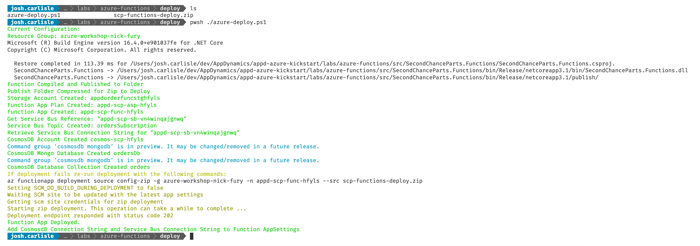
TIP: If you get an errors during the execution ensure that you have correctly installed all the workshop prerequisites. It is not uncommon to see deployment errors during the deployment. If this is the case review the output of the script for deployment commands that can be executed again.
Validate Azure Resource Deployment
Validate that your azure resources are deployed by logging into the Azure Portal and opening your resource group.
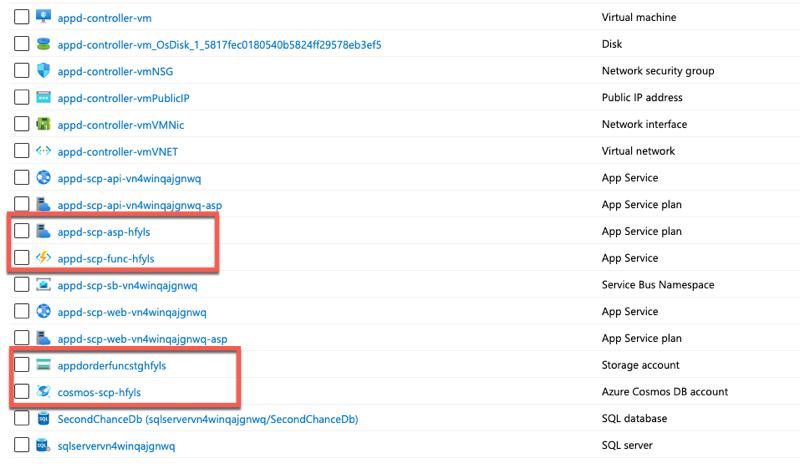
Check your Functions
Verify that the web site is up and running by visiting it in your browser. You can find your websites URL in the portal by opening the appd-scp-web labeled app service resource.
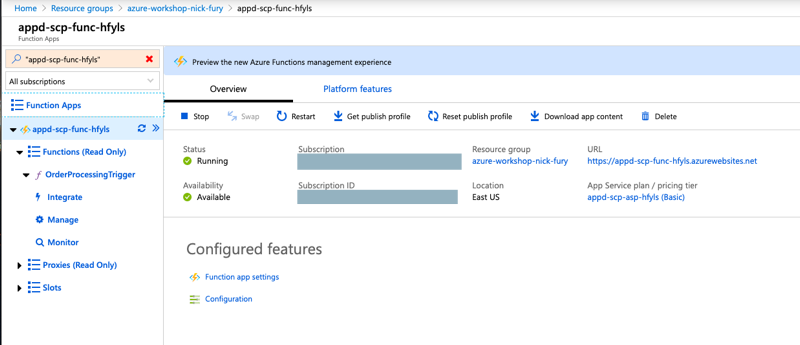
TIP: The Azure Functions portal is soon to be getting a facelift. In the coming weeks the portal may look slightly different and more in line with the App Services experience. You will however still be able to preview your deployed functions.
Verify the Function App is running
Open the URL of the function app and confirm the function app is running. You will see a page similiar to the following:
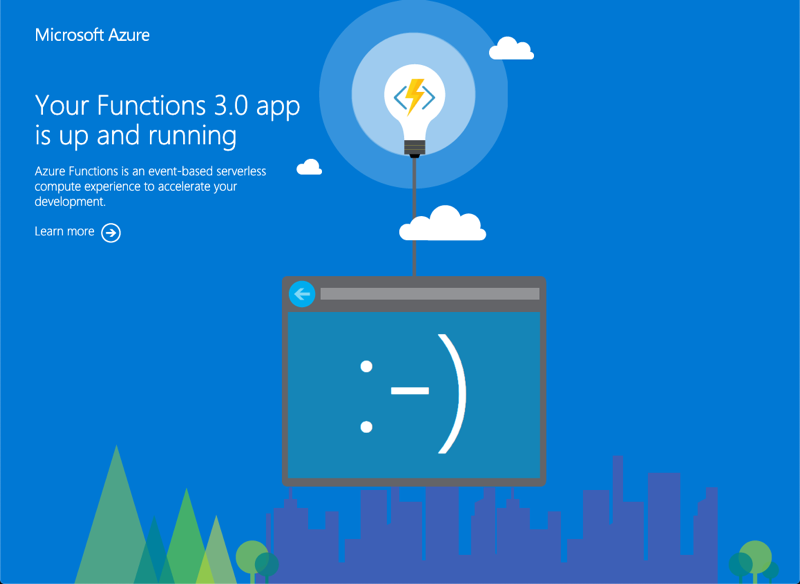
TIP: If you get “Function host is not running” restart the function app from the portal. If this error continues use KUDU to review the application log files for the host that is typically found at D:\Home\LogFiles\Application\Functions\Host . Common sources of errors are missing configuration app settings and failed deployments causing missing files.
Step #2 - Installing the AppDynamics Agent
The AppDynamics agent installation process for Azure Functions mirrors that of Azure App Services when deploying to traditional app service plans. Both make use of Azure App Service’s Site extension framework. Please follow the instructions in the App Services Step #2 - Agent Installation for installing the AppDynamics agent.
TIP: When using Azure Functions on a consumption plan (serverless). Additional steps must be taken to apply configuration settings due to known limitations with the Site Extension’s. Current guidance is to still activate the extension but additional required AppDynamics environmental variables MUST be set through the appsettings. These include Core Profiler settings outlined here. The path to the core profiler and other agent components, if the agent is installed as part of the Site Extensions, will be D:\home\SiteExtensions\AppDynamics.WindowsAzure.SiteExtension.4.5.Release\AppDynamics .
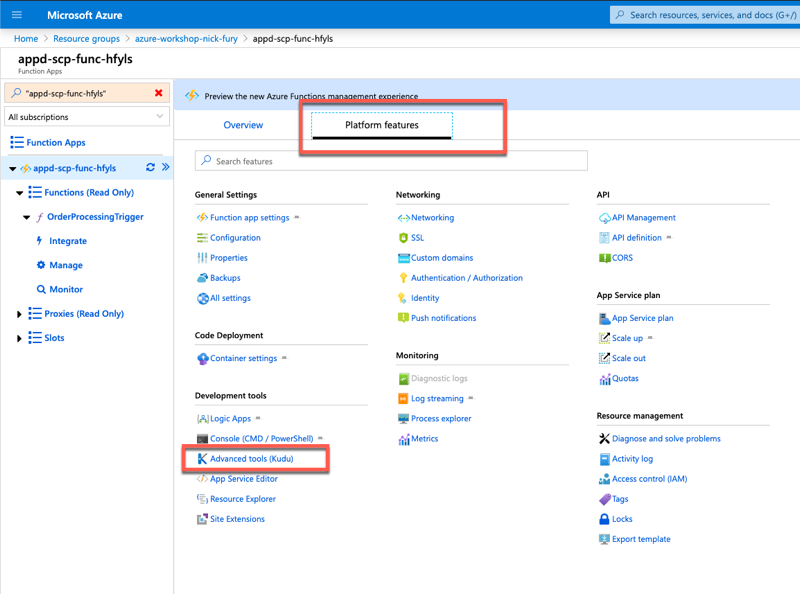
Accessing Kudu from Azure Functions
Kudu remains an intregral part of Azure Functions. In the current Azure Functions portal experience the linked to Advanced Tools (KUDU) is located in a different location under the Platforms tab and Development Tools Section.
Better Understanding the Deployment
Similiar to the deployment of the App Service Lab we are using Powershell as the scripting runtime time support our deployment due to not only it’s powerfull features but it’s cross platform support.
However instead of deploying our Azure Resources through ARM templates or through powershell we will take another popular approach. The Azure CLI. We’ve already had some exposure to the Azure CLI when deploying our ARM templates but in this lab you’ll better understand some of the benefits associated with using the Azure CLI.
The Azure CLI
The Azure CLI is a cross platform command line interface (CLI) for working with Azure resources. Although in our example we are executing our Azure CLI commands from powershell we could have very easily executed them from Bash, Shell, Batch, or even just a terminal window. In fact this workshop was originally developed using shell + Azure CLI until we decided to include cross-platform (windows & mac) elements to the workshop that neccesitated using a cross platform scripting environment such as powershell.
The Azure CLI is often considered to hit a sweet spot for simplicity and power. There is little doubt that Powershell is a powerfull platform but some consider the the power can often come at the expense of complexity and verboseness of powershell or the purely declartive nature of ARM Templates. Both however are important to have in your toolbelt as an Azure administrator and both Powershell and the Azure CLI allow you to have some complex logic around your deployments.
Once again this deployment can be broken down into a few key stops
- Building and Packaging the .Net application
- Deploying Azure Resources Through the Azure CLI
- Deploying the application packages to Azure Functions
- Updating Azure Function App Settings
ARM Templates have a very useful called RandomString() that is often used when creating resource names that are unique. The equivilent does not exist in the Azure CLI (or Powershell > modules). I find the following utility function in powershell meets the needs of it well:
function Get-RandomCharacters($length, $characters) {
    $random = 1..$length | ForEach-Object { Get-Random -Maximum $characters.length }
    $private:ofs=""
    return [String]$characters[$random]
}
Building and Packaging Azure Functions
The build process will of course be different depending on the target language for Azure Functions. Because our functions are functions written in .net we can compile them with the dotnet compiler in the same way we did ouar ASP.NET API and Razor pages. Additionally Zip Deploy is the preferred method for deploying Azure Functions.
# publish the order processing code
dotnet publish -c Release "../src/SecondChanceParts.Functions/SecondChanceParts.Functions.csproj"
$functionsPublishFolder =   "../src/SecondChanceParts.Functions/bin/release/netcoreapp3.1/publish"

$functionsPackage = "scp-functions-deploy.zip"
if(Test-path $functionsPackage) {Remove-item $functionsPackage}
Add-Type -assembly "system.io.compression.filesystem"
[io.compression.zipfile]::CreateFromDirectory($functionsPublishFolder, $functionsPackage)
TIP: If you have interest in running and debugging your azure functions locally consider installing the Azure Functions Extensions for Visual Studio Code or install the Azure Functions Core tools directly. Visual Studio also has native Azure Functions tooling through it’s own extensions.
All Azure Functions must have an azure storage account. They can share storage accounts although it’s not generally recommended and doesn’t provide any significant cost savings.
az storage account create `
    --name $storageAccount `
    --location $region `
    --resource-group $resourceGroup `
    --sku Standard_LRS `
    --output none
Azure Functions must also have a app service plan. Commonly this is a consumption or serverless plan but it can also be traditional app service plans that are used regular App Services. Note that we have disabled Application Insights through the disable-app-insights true option. Application Insights may conflict with AppDynamics in some scenerios so it’s recommended it be turned off. Because Application Insights is automatically created for new App Services and Azure Functions by default we need to be explicit.
az functionapp create `
    --name $functionApp `
    --storage-account $storageAccount `
    --plan $appServicePlan `
    --resource-group $resourceGroup `
    --disable-app-insights true `
    --functions-version 3 --output none
TIP: You can have multiple app services and azure functions using the same app service plan. They will share the same underlying compute but still remain isolated from each other. Also Azure Functions running under App Service plans don’t benefit from the same level of elastic scale but also don’t suffer the same restrictions on execution time and cold starts. Remember agent deployment will be different for consumption plans!
Our solution will listen for a Service Bus Topic coming from our App Services. This is a common asynchronous pattern between services. To get a notification we need to create a subscription for the topic. Additionally we want to get the connection string for the service bus namespace so we can later add it to our Azure Functions Settings.
$serviceBus = az servicebus namespace list `
    --resource-group $resourceGroup `
    --query [0].name `
    -o json

az servicebus topic subscription create `
    --resource-group $resourceGroup `
    --namespace-name $serviceBus `
    --topic-name "OrderTopic" `
    --name $subscriptionName `
    --output none

$connectionString=$(az servicebus namespace authorization-rule keys list `
                    --resource-group $resourceGroup `
                    --namespace-name $serviceBus `
                    --name RootManageSharedAccessKey `
                    --query primaryConnectionString `
                    --output tsv)
TIP: The Azure CLI conveniently has several ways out providing output. Table output is common to make command line results easier to understand. We can also output in json and tsv (or none at all!). tsv is particular useful when combined with the query functionality to pipe output from your command into a variable to use later.
Our micrservice based on Azure Functions follows best practices for microservices and has it’s own data source optimized for it’s use cases. In this case we are provisioning a CosmosDB Account, Database, and Collection. Similiar to the Service Bus we also need a connection string for ComsosDB which we will use later to update our Function Settings.
az cosmosdb mongodb database create `
    -a $accountName `
    -g $resourceGroup `
    -n $databaseName `
    --output none

#Create Collection
az cosmosdb mongodb collection create `
    -a $accountName `
    -g $resourceGroup `
    -d $databaseName `
    -n $collectionName `
    --shard $partitionKey `
    --throughput 400 `
    --output none

#Get CosmosDB Connection String
$cosmosConnectionString = $(az cosmosdb keys list `
                            -n $accountName `
                            -g $resourceGroup `
                            --type connection-strings `
                            --query connectionStrings[0].connectionString`
                            --output tsv)
TIP: CosmosDB is a globally distributed referred multi-model No SQL database. Multiple model refers to it’s support for multiple models in which to interact with CosmosDB through. We are using MongoDB which means we are working with CosmosDB through the Mongo API. We could have also chosen other options such as the default SQL, Cassandra, Tables, or Gremlin. Behind the scenes the platform is still CosmosDB.
Lastly we will deploy our zip package to our our Azure Function and update our function app settings with our Service Bus Connection String and CosmosDB Connection String.
az functionapp deployment source config-zip `
 -g $resourceGroup -n $functionApp --src $functionsPackage --output none
 Write-Host ("Function App Deployed.") -ForegroundColor Green

 #Update Function App Settings
az functionapp config appsettings set `
--name $functionApp `
--resource-group $resourceGroup `
--settings "CosmosDbConnection=$cosmosConnectionString" `
--output none
Write-Host ("Add CosmosdB Connection String ") -ForegroundColor Green

 #Update Function App Settings
 az functionapp config appsettings set `
 --name $functionApp `
 --resource-group $resourceGroup `
 --settings "ServiceBusConnection=$connectionString" `
 --output none
BEST PRACTICE: You may be noticing that we are putting connection strings within our appsettings. Although convenient this could also be considering a security risk. This is one of those cases where we are taking a shortcut for expediency of the workshop. In production you should highly consider using Azure Key Vault to store and manage any credentials. Azure Key vault can be automated and administered just like any other Azure resource.