Configure Lab Environment
Before continuing please confirm you have installed all the pre-requisites for the workshop.
Clone This Workshop Github Repository
The Azure Cloud Workshop is maintained here on github as a git repository . Before starting the workshop you should clone this repository so you have it locally on your computer. (What is cloning?).
git command line
command prompt: git clone https://github.com/Appdynamics/appd-azure-workshopVisual Studio Code
Visual Studio Code also has built in integration with git.
- Open Visual Studio Code
- Select the Source Code Icon
- Choose Clone Repository
- Enter the Url of the workshop github repo
- Enter a local location for your repo
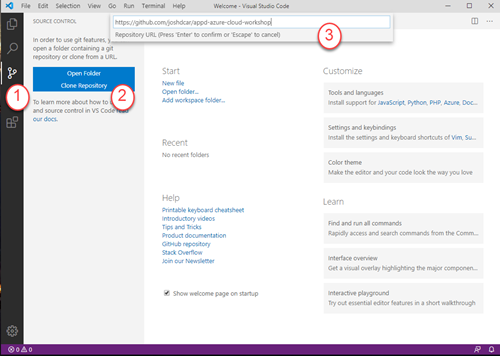
Once cloned open the appd-azure-cloud-workshop.code-workspace file with Visual Studio Code. Confirm you see a directory structure similar to the image below with Visual Studio Code.
If you open the folder and not the workspace you will get a prompt similar to the below:
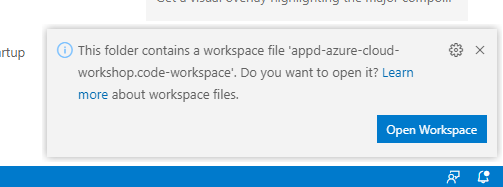
Copy Workshop Config File
Before getting started with the lab confirm you have access to the workshop’s Azure subscription with the account credentials json file provided by your workshop organizer.
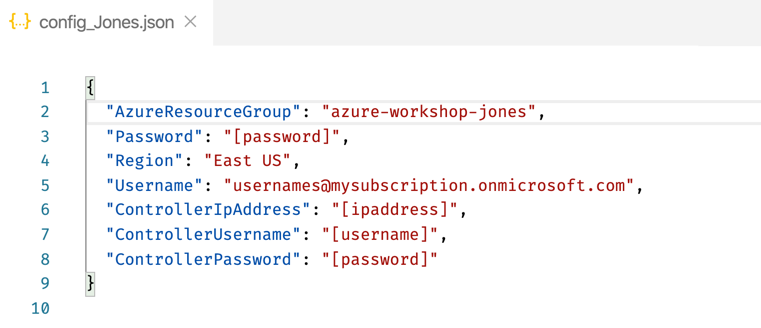
Please take note of the Azure login credentials (Username and password) and the Controller details (Controller IP Address, ControllerUsername, and ControllerPassword) as you will need to use these throughout the workshop. (NOTE: if you are using your SaaS controller, use that instead.)
Copy the contents of the config json file into the config.json file located in the environment folder of your local cloned copy of the workshop repository.
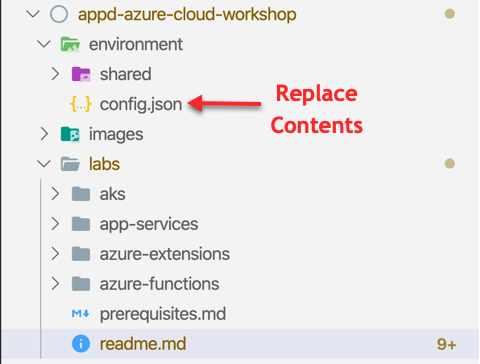
Confirm Azure Access
Confirm that you have access to Azure both through the standard portal but also through each of the tools which have slightly different ways of authenticating but all make use of the same login credentials.
WARNING: It is often the case that you may have multiple Microsoft or Active Directory organization logins in your browser profile. Ensure you are not logging in with any of these previous profiles automatically. You may find it helpful to create an additional dedicated profile in your browser such as Chrome to avoid login\session conflicts.
Azure Portal
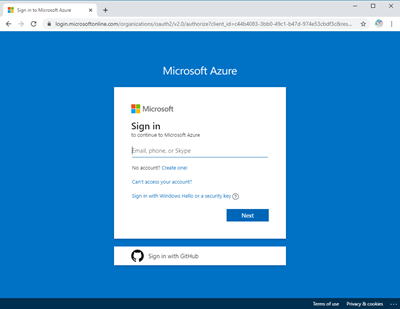
Visit portal.azure.com
Login using the credentials provided by the workshop coordinator.
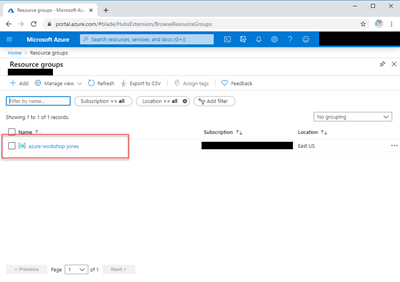
Confirm both access to the azure portal and also that you are seeing your default resource group and the AppD controller virtual machine (if you’re using that as part of your lab) is present within the resource group.
Azure CLI
- Open a command prompt (windows) or terminal (mac).
- Enter
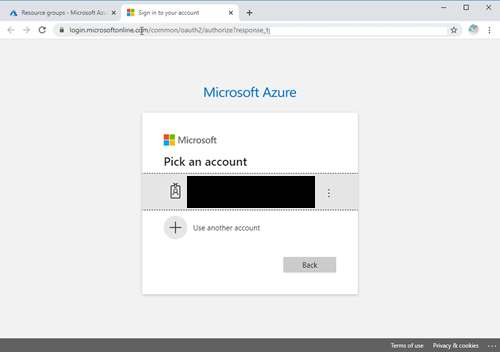
az loginat the prompt - A browser window will be opened for a login. If you have the previous browser session open simply select your login to automatically login with that account.
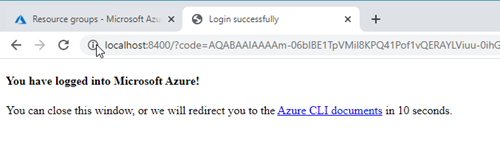
Confirm you have successfully logged in with Azure CLI.
Confirm expected subscription details in the console.
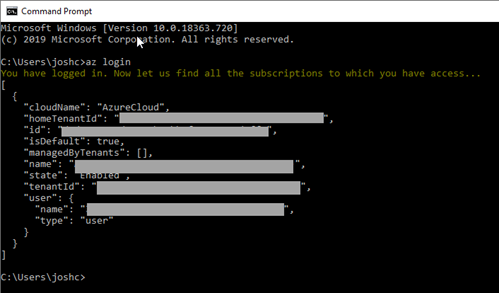
Info: This login process stores a cached version of your access token. This generally expires in 90 days but may expire earlier in some scenarios.
Azure Powershell
- Open a powershell prompt. This can be done directly or by entering pwsh at the terminal\command prompt.
- Enter
connect-AzAccountat the prompt. Follow the instructions to the website and take note of the code
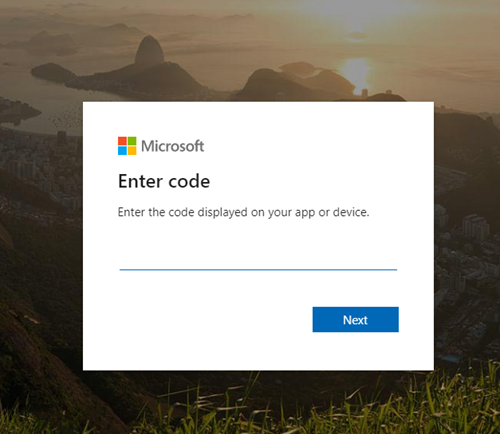
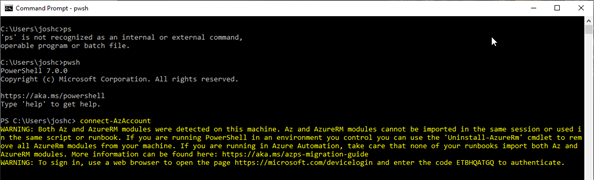 3. Enter the code into your browser window
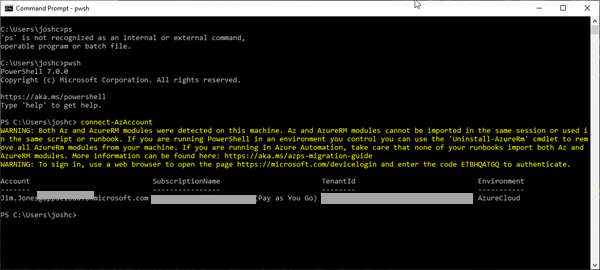
- Confirm successful login
Confirm AppDynamics Controller Access
- Open a browser and navigate to the the ip address of the controller provided by the organizer
- Login with the provided controller credentials.
- Confirm the controller is running and take note of your agent keys for future use.
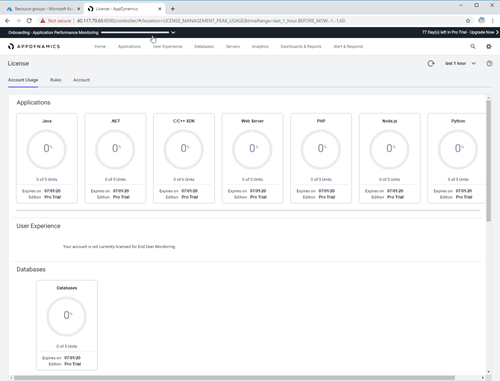
TIP: The workshop controllers are fairly low power virtual machines. Initial startup times may vary and lead to initial timeouts. If timeouts persist confirm that the Network Security Group access policy is in place for port 8090.
Labs
This workshop consists of several labs with both primary, secondary , and bonus objectives.
| Lab | Primary Objective | Secondary Objective | Bonus Objective |
|---|---|---|---|
| Azure App Services (45 minutes) | Deploying Agents via Site Extensions | Provision Resources w/ ARM Templates | Configure Analytics |
| Azure Functions | Deploying Agents via Site Extensions | Provision Resources w/ Powershell | SQL & CosmosDB Metrics |
| Azure Kubernetes Services (AKS) Coming Soon. | Deploy Cluster Agent | kubectl with AKS |